Contents +
User Guide
Introduction (what AIOHub is)Admin
Admin login and the 6-digit code (Google Authenticator)Advanced homeStored documents and visibilityAccounts (issuing and suspending employees)AIOHub AIPublic content (subjects, chapters, articles, FAQs)Public page (share with one URL)AI desk (inquiries, conversation history, page settings)Activity (public-content gaps, edit history, effects)SettingsTrashWhen something goes wrongSettings
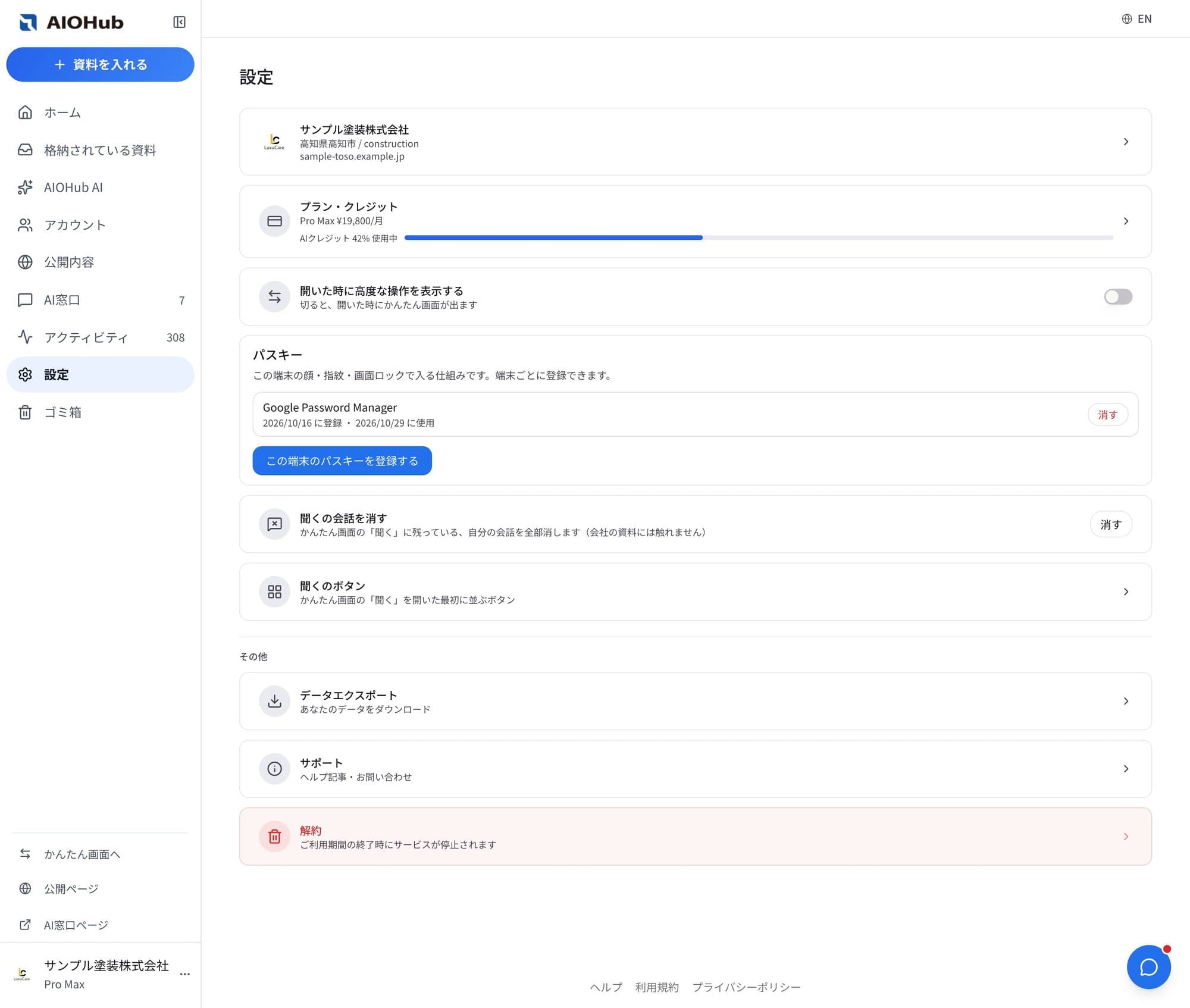
Company info, plan, Ask buttons, passkey and cancellation are under "Settings" in the left list.
Steps
- 1
Company card at the top
name, industry, address, website, description, logo. Shown on the public page header.
- 2
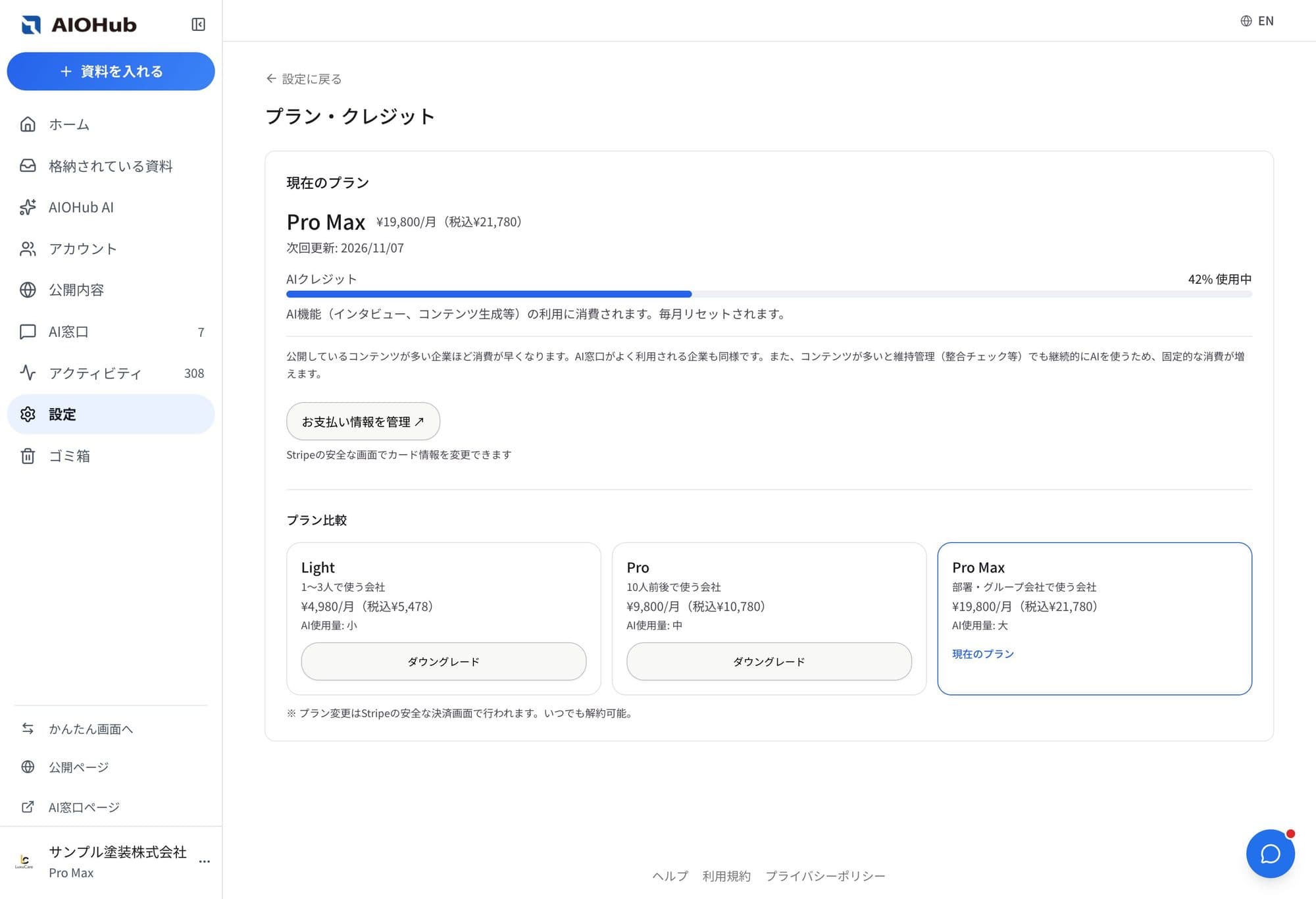
"Plan & credits"
current plan (Trial, Light, Pro, Pro Max), this month's AI usage and next renewal. "Manage payment" opens Stripe for card changes and receipts. Change plans from "Compare plans" here (from Trial, "Choose this plan" registers a card and switches).
- 3
"Open Advanced first"
start on the admin screen from the next login.
- 4
"Passkey"
register or remove this device's passkey (same as on the simple screen).
- 5
"Clear Ask conversation": deletes your own conversation in the simple screen's Ask (documents are untouched).
- 6
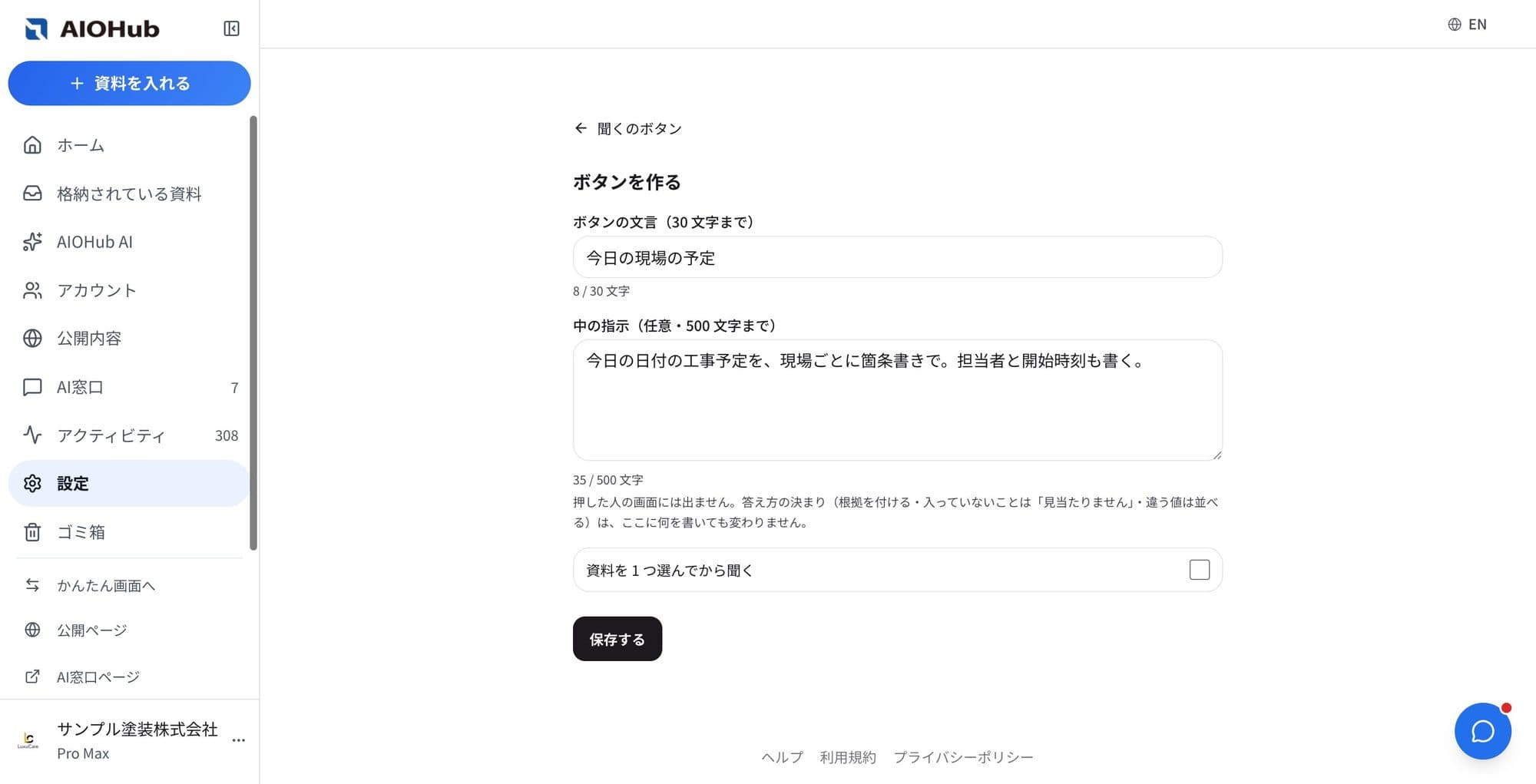
"Ask buttons"
buttons shown first in the simple screen's Ask (up to 8 per company; owners and admins). "Add button" → label (30 chars, e.g. "Today's site schedule") and a hidden instruction (optional, 500 chars, e.g. "List today's work by site"). Check "Pick one document first" for a file-attaching button. Long-press ⋮⋮ to reorder.
- 7
"Data export"
download your data. "Support": help articles and contacting operations (bugs, contract). "Cancel": schedule company cancellation (owner only; usable until the end of the period).
Screens