Contents +
User Guide
Introduction (what AIOHub is)Admin
Admin login and the 6-digit code (Google Authenticator)Advanced homeStored documents and visibilityAccounts (issuing and suspending employees)AIOHub AIPublic content (subjects, chapters, articles, FAQs)Public page (share with one URL)AI desk (inquiries, conversation history, page settings)Activity (public-content gaps, edit history, effects)SettingsTrashWhen something goes wrongLogging in
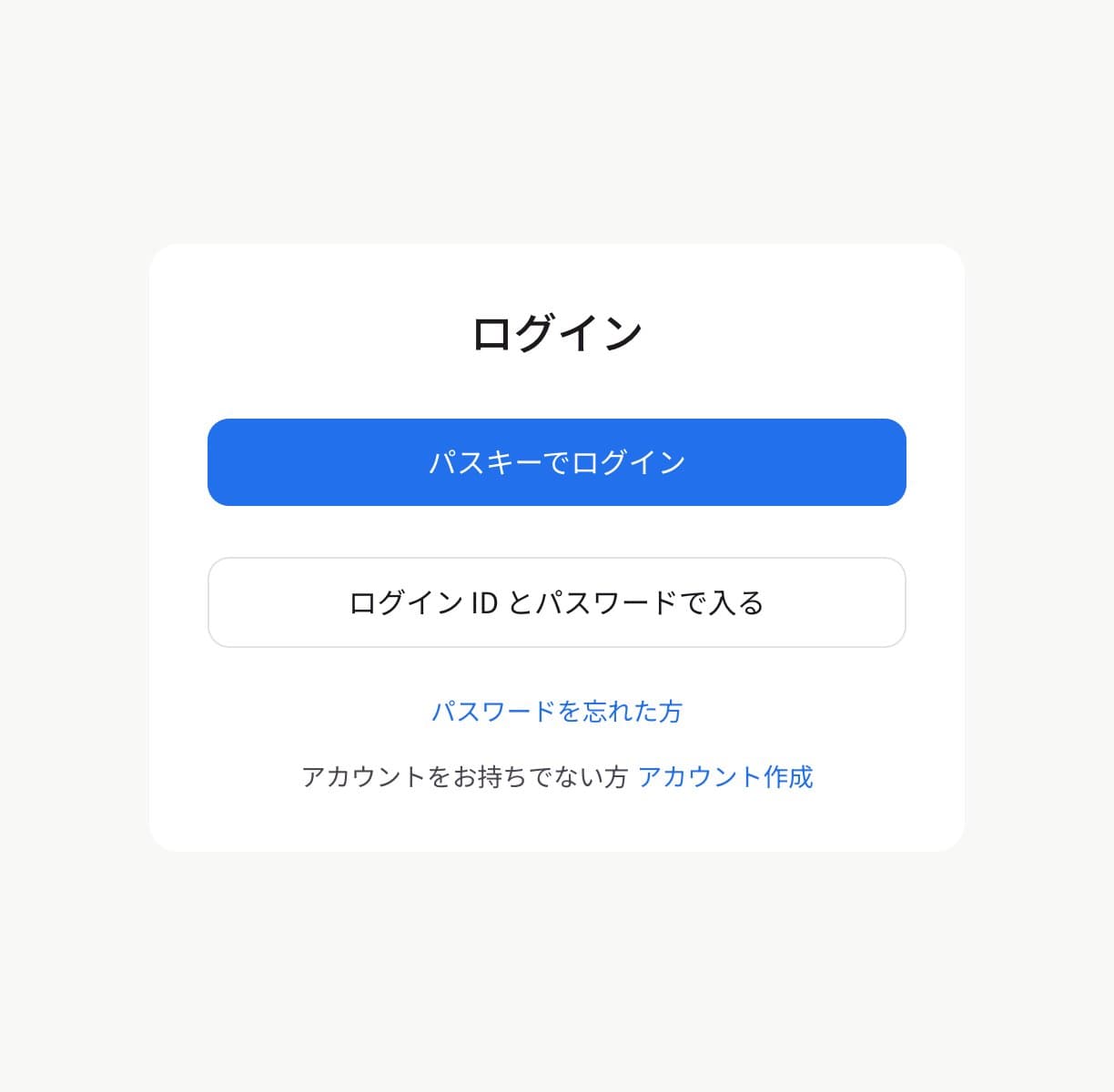
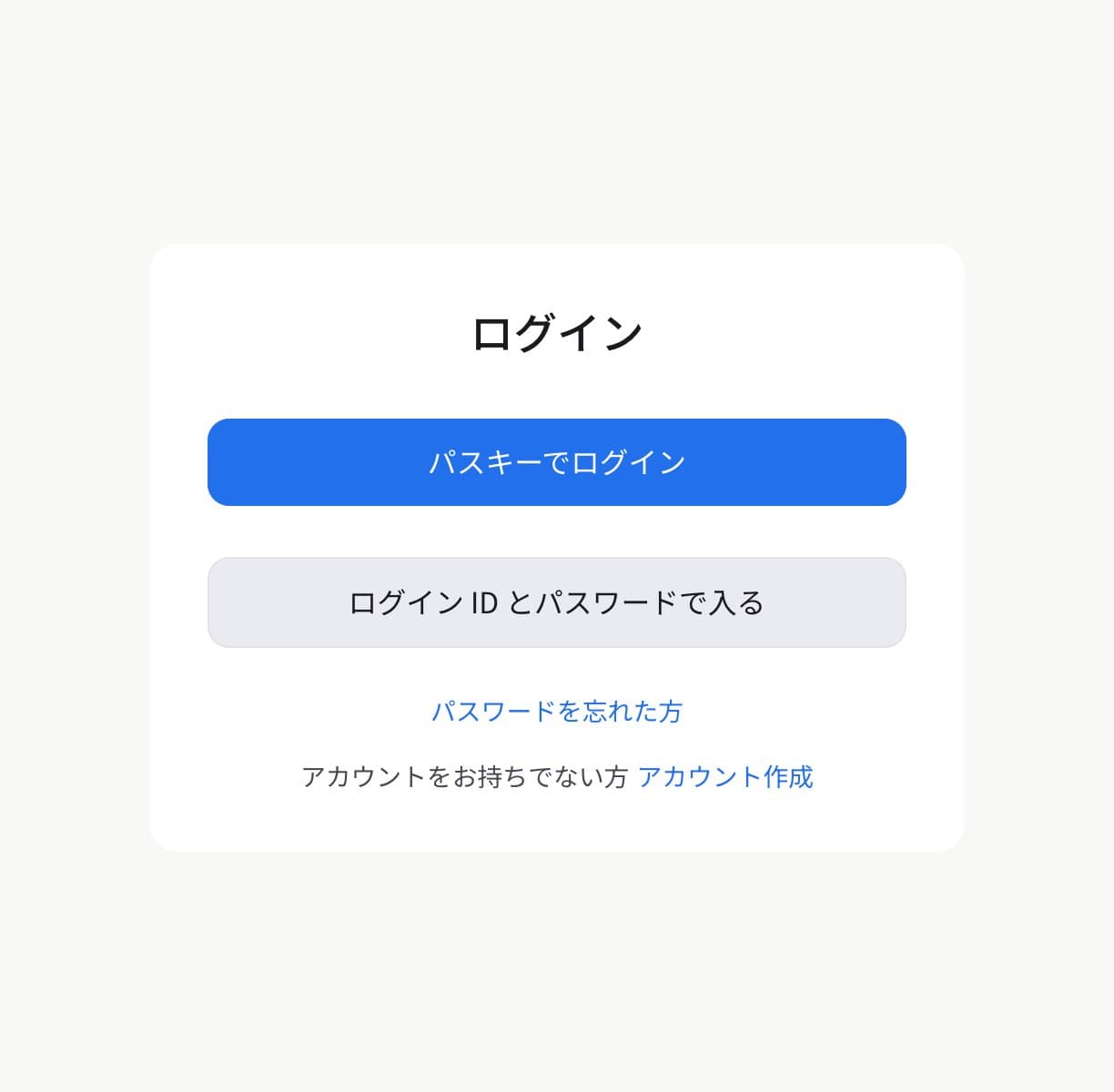
Two ways: a passkey (this device's face, fingerprint or screen lock) or a login ID and password. On a device with a passkey registered, the passkey button comes first.
Steps
- 1
"Log in with passkey"
verify with the device's face, fingerprint or screen lock; no password typed. Passkeys are per device, so another phone or PC needs its own registration first (see "Menu and settings").
- 2
"Log in with ID and password": fields open. The login ID is "company short name.person" (e.g. sample.sato). Owners created with an email address can also use that email.
- 3
First login (employees)
use the login ID and temporary password from your admin. The temporary password is for this time only. After agreeing to the terms, the screen "Decide how you'll log in next time" offers "Register a passkey (recommended)" or "Set your own password" (8+ characters).
- 4
Five wrong passwords in a row lock login for 15 minutes. Wait 15 minutes and try again.
- 5
Forgot your password? If you log in with an email address (owners and admins), tap "Forgot password?" on this screen, enter your email, "Send reset email", then open the link in the email and set a new password (the link works once, for 1 hour). You will be logged out afterwards, so log in again with the new password. You can also log in with a passkey on a registered device. Employees (login ID): ask your admin to "Reissue temporary password".
- 6
"Create account" on the login screen is for starting a new company. Employees should get an ID from their admin instead.
Screens