Contents +
User Guide
Introduction (what AIOHub is)Admin
Admin login and the 6-digit code (Google Authenticator)Advanced homeStored documents and visibilityAccounts (issuing and suspending employees)AIOHub AIPublic content (subjects, chapters, articles, FAQs)Public page (share with one URL)AI desk (inquiries, conversation history, page settings)Activity (public-content gaps, edit history, effects)SettingsTrashWhen something goes wrongWhat I put in
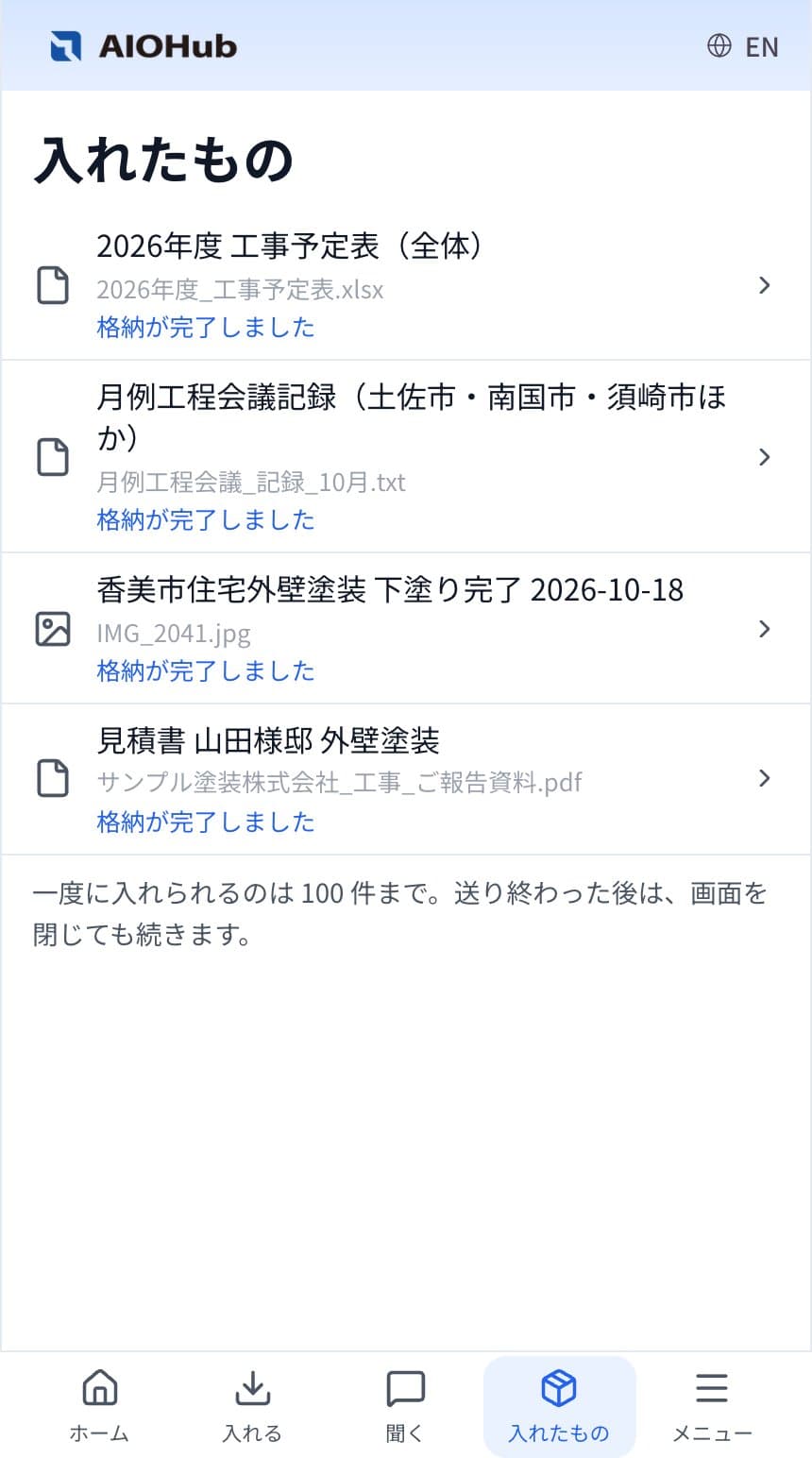
A list of the documents you put in, and each one's contents. Check reading progress here too.
Steps
- 1
Each row shows title, original file name and status. Once reading finishes, AI retitles it from the content.
- 2
Statuses
"Waiting", "Reading", "Reading 40%" (large documents are read in chunks, so progress shows), "Reading (finishing)", "Stored". "Reading (waiting, AI is busy)" resolves on its own.
- 3
"Could not read"
open it to see why. Password-protected or corrupt files: put in again. AI-side trouble: "Read again".
- 4
"A question is waiting"
only for camera photos of a site or object whose subject could not be read, it asks once: "What are these photos about?" Pick a candidate or type up to 40 characters. "Later" is fine (it won't ask again). Photos of mail, flyers or email screens whose text shows what they are are not asked about; they get a title from their content.
- 5
"Rename"
the button to the right of the title lets you change the name (up to 80 characters). The person who put it in, owners and admins can rename it (after reading finishes and a visibility label is set). AI never overwrites a name a person gave. The original file name is kept, and Ask also finds the document by the new name.
- 6
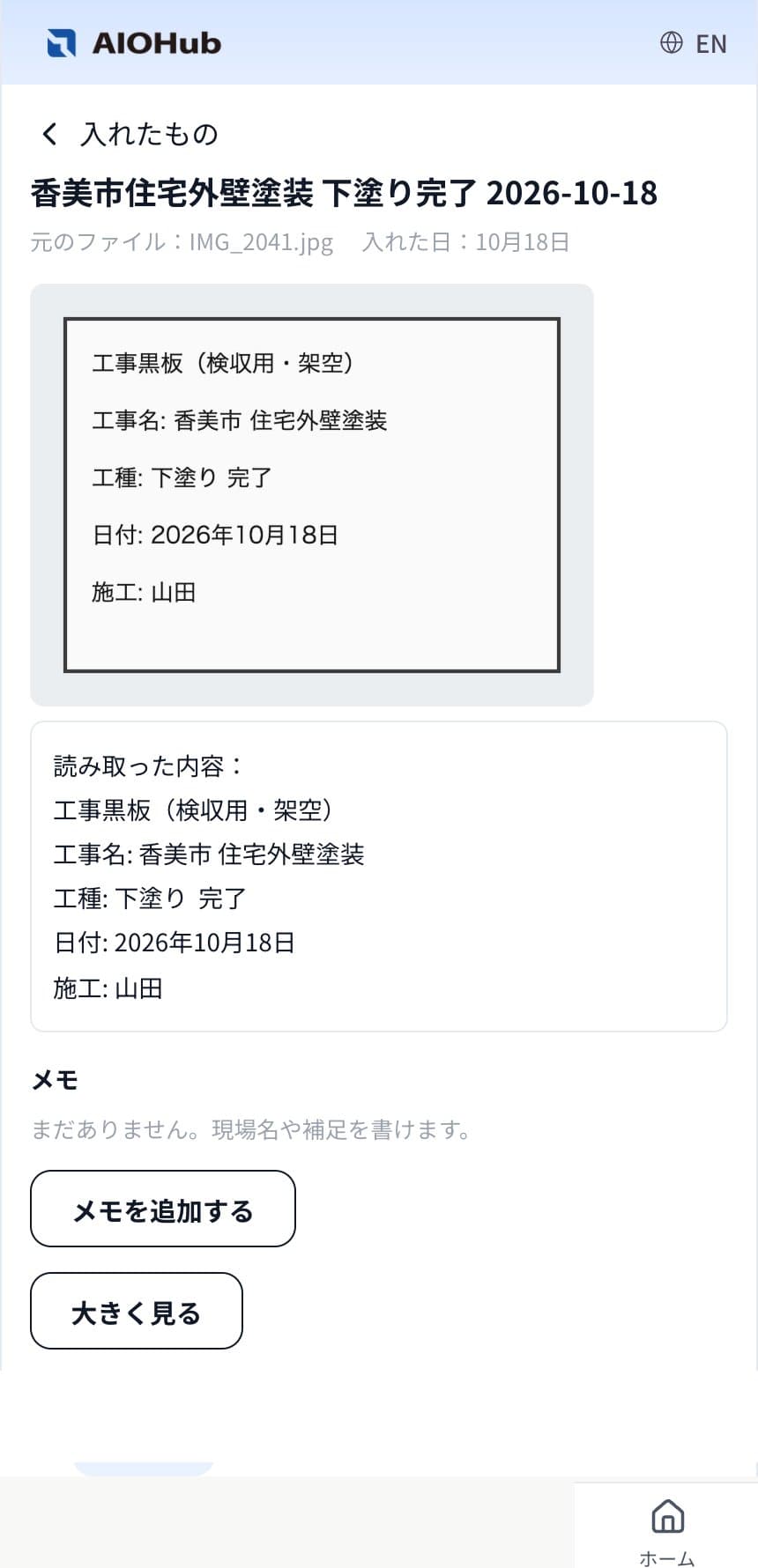
Open one to see what the document is, what was remembered, the original file and notes. "View large" opens the original (PDFs and photos inline, other types as a download). For a PDF, "View pages" shows the pages stacked vertically so you can swipe through them (pinch to zoom; pages load as you reach them, so large PDFs open right away). For Word and Excel, "View contents" shows the headings, paragraphs, tables and images in their original order, or the table of each sheet (detailed formatting and charts are not shown). "Open the original file" downloads the PDF, Word or Excel file as is, for when you want to save it.
- 7
"What this document is"
the type the AI decided (quote, minutes, manual…), whether it was made by us or received, and a one-line description. "What we remembered": the lines the AI kept from this document, grouped into steps, decisions, policies, facts, plans and guesses. Answers in "Ask" are built from these lines. "Show the original text" shows the text as read.
- 8
"Wrong"
if a remembered line is wrong, use "Wrong" to the right of it to remove the line or rewrite it. Removed or rewritten lines are no longer used in answers (the original file does not change). The person who put it in, owners and admins can do this.
- 9
"Add note"
write the site name or extra details. Notes are visible to whoever can see the document and are used in answers.
- 10
"Delete"
the button at the bottom of the open document moves it to the trash (you confirm once). The person who put it in, owners and admins can delete it. A deleted document leaves the list and Ask. For 30 days, owners and admins can restore it from "Trash" in the admin screens.
Notes
- Photos, PDFs, Word and Excel files are shown with faces of people who happen to appear, nameplates, licence plates and unrelated people's papers hidden ("View large" and "Open original file" too; a PDF becomes page images, so its text cannot be selected; Word and Excel files get only their images hidden). Faces printed in brochures or flyers (including illustrations and stock photos) are not hidden inside the company. Business details such as customer and staff names are not hidden inside the company. Right after you put one in, "Checking what appears" shows; until the check is done the photo stays hidden and the PDF cannot be opened (reading the text and Ask still work). Each photo, each PDF page with images or scans, and each image inside a Word or Excel file uses 1 of your usage allowance (text-only pages and small icons use none). If the allowance runs out, the check pauses and continues automatically when it is restored or increased.
- Only the owner can adjust the hidden areas with "Adjust hidden areas": the original appears with the currently hidden areas outlined. Tap a box to show it, drag on an empty area to hide it, drag around several boxes to show them all, then press "Apply". "Preview the result" shows the masked version before applying, and "Show only the dragged areas" hides everything except what you drag. Areas adjusted by a person are never overwritten by the automatic check.
Screens