Contents +
User Guide
Introduction (what AIOHub is)Admin
Admin login and the 6-digit code (Google Authenticator)Advanced homeStored documents and visibilityAccounts (issuing and suspending employees)AIOHub AIPublic content (subjects, chapters, articles, FAQs)Public page (share with one URL)AI desk (inquiries, conversation history, page settings)Activity (public-content gaps, edit history, effects)SettingsTrashWhen something goes wrongStored documents and visibility
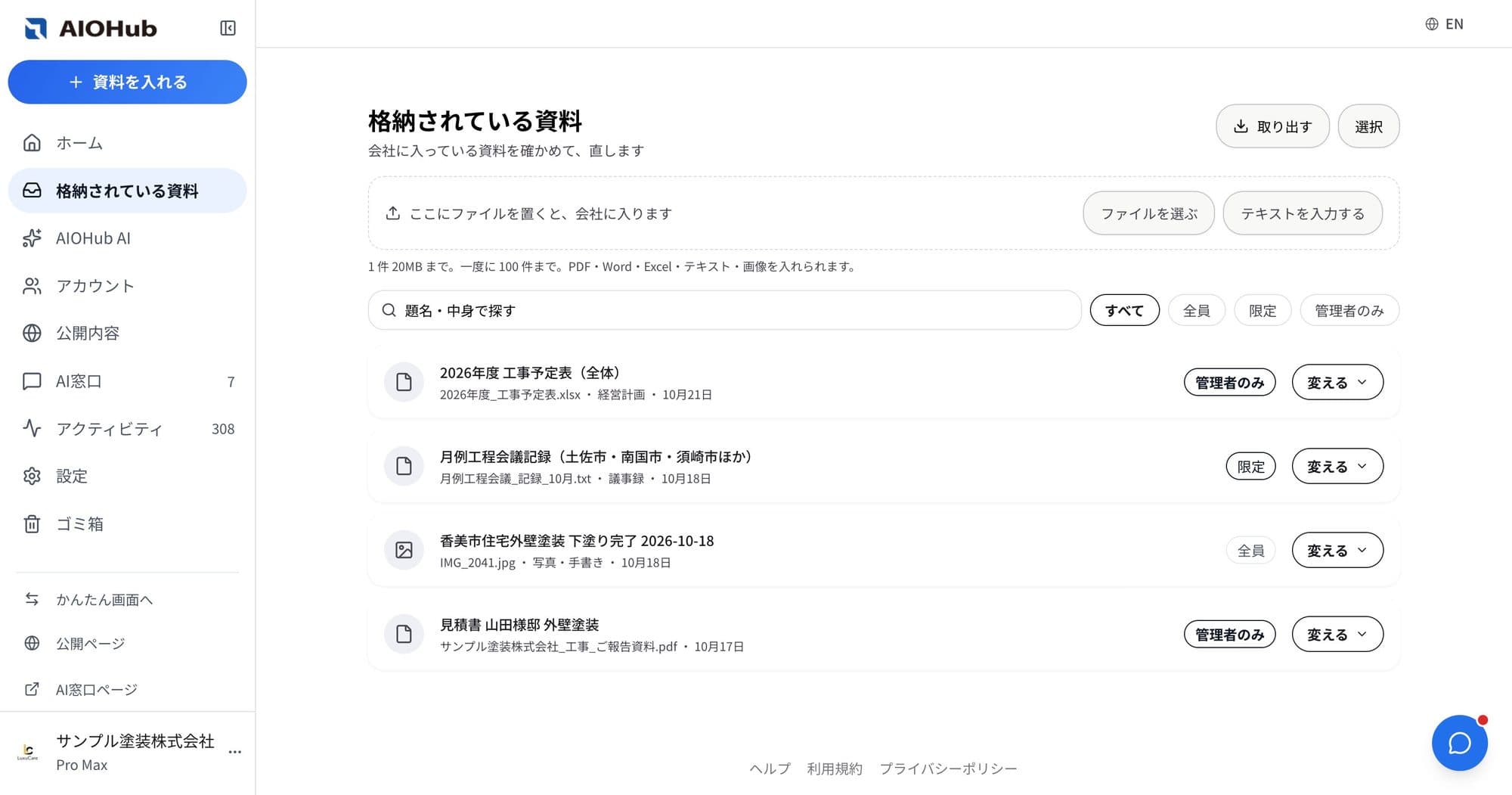
Review and fix what's in the company. Each document has a visibility label: Everyone, Limited or Admins only. "Ask" answers only from documents the asker can see.
Steps
- 1
Filter with All / Everyone / Limited / Admins only. The search box searches titles and content (the read text).
- 2
Labels
"Everyone" is anyone in the company. "Limited" is members with "Can see limited documents" checked in Accounts, plus owners and admins. "Admins only" is owners and admins. Documents read as payroll lists, résumés or evaluations start as Admins only. Otherwise, documents put in by an owner/admin start as Admins only and by a member as Everyone.
- 3
"Change" changes the label. Not possible until reading has finished.
- 4
You can put in from here too (drop files in the box, choose files, enter text). Same as the simple screen's "Put in".
- 5
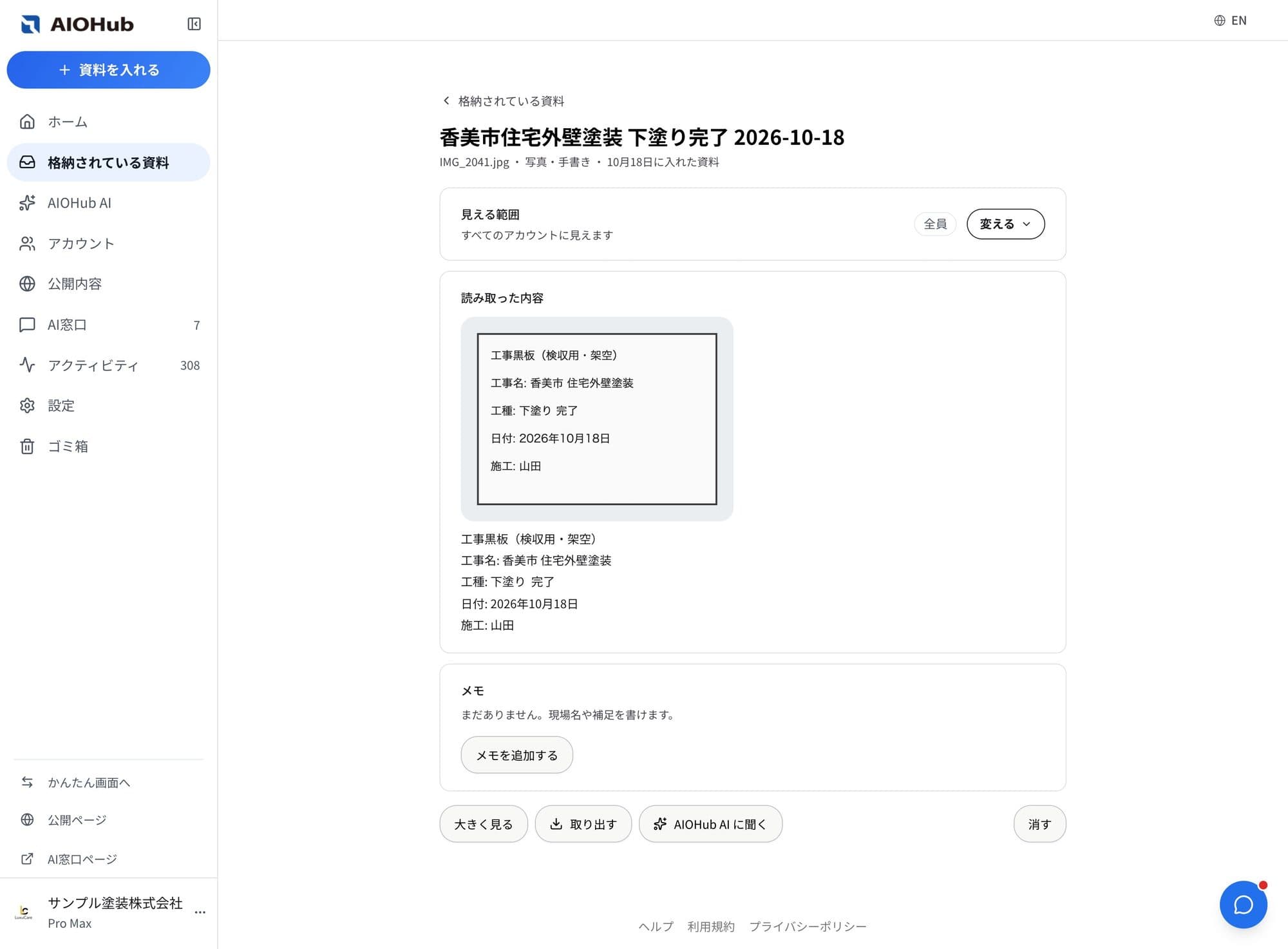
Open one to see visibility, what the document is, what was remembered (the lines the AI kept; "Wrong" removes or rewrites one), the original text, original file and notes. If it couldn't be read, the reason is shown. "Ask AIOHub AI" opens AIOHub AI with that document on the right.
- 6
Changing visibility (owners and admins): changing it on the first message of an exchange or a situation also changes its follow-ups and attachments. Before it changes, the number of items that change with it is shown. If someone else added a follow-up, you can choose "Keep showing it to them" or "Stop showing it from now" (if you choose nothing, they keep seeing it; it is not asked when changing to Everyone). The person who first put it in can still see it after the change. The opened document shows how many people can see it from outside its label.
- 7
"Delete" in the opened document moves it to Trash. It can be restored from Trash for 30 days; after that the original file and read content are permanently deleted.
- 8
"Export" / "Select" (owners and admins): choose documents and download originals plus an index sheet as a ZIP. Up to 100 per export. Who exported what is logged.
Screens