Contents +
User Guide
Introduction (what AIOHub is)Admin
Admin login and the 6-digit code (Google Authenticator)Advanced homeStored documents and visibilityAccounts (issuing and suspending employees)AIOHub AIPublic content (subjects, chapters, articles, FAQs)Public page (share with one URL)AI desk (inquiries, conversation history, page settings)Activity (public-content gaps, edit history, effects)SettingsTrashWhen something goes wrongMenu and settings (registering a passkey)
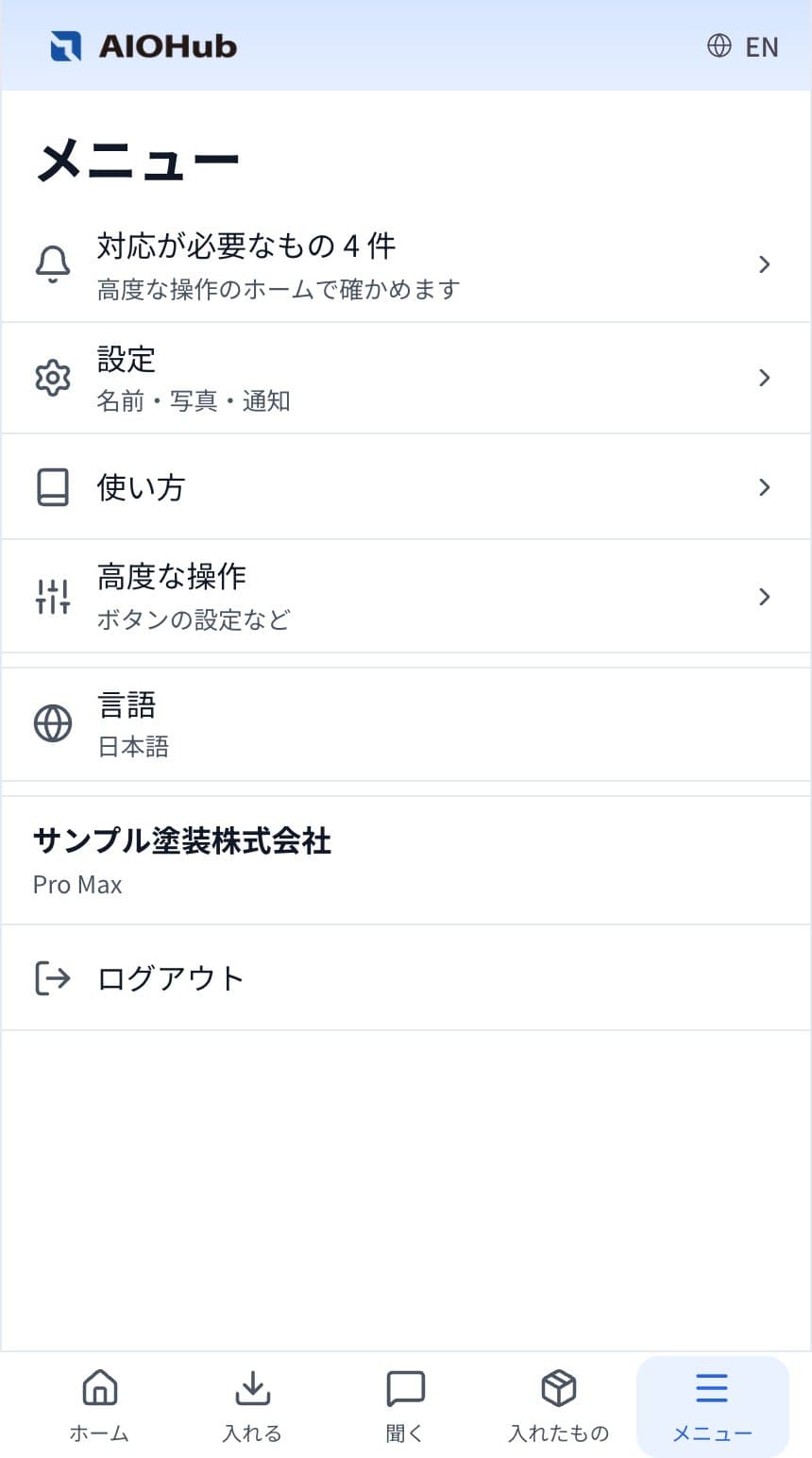
"Menu" in the bottom bar leads to Settings, How to use, Advanced, Language and Log out.
Steps
- 1
"Needs attention (N)"
shown to owners and admins only. Opens the Advanced home.
- 2
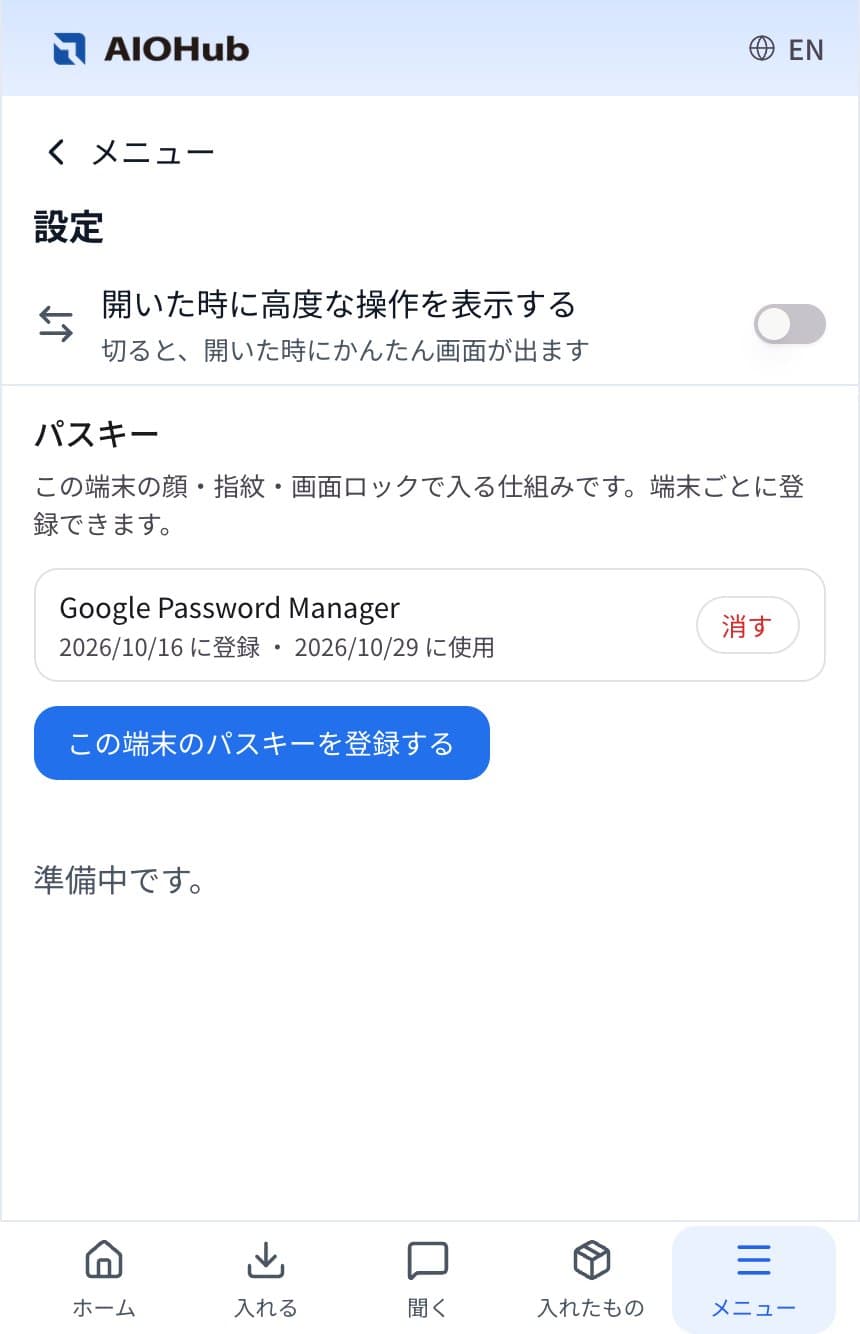
Settings → Passkey → "Register this device's passkey": the device's prompt appears; confirm with face, fingerprint or screen lock. Registration is per device (saved in iCloud Keychain on iPhone, Google Password Manager on Android, Windows Hello / Touch ID / Chrome's password manager on PCs). The list shows where it's saved, the registration date and last use. "Remove" deletes that device's passkey.
- 3
Changing phones
on the new device, log in with your login ID and password (or a temporary password reissued by your admin), then "Register this device's passkey" again. Remove the old device's passkey.
- 4
Settings → "Open Advanced first": owners and admins who want the admin screen next time. Off means the simple screen opens.
- 5
"How to use"
a short version of this guide. "Advanced": the admin screen (owners and admins only).
- 6
"Language" switches Japanese/English; "Log out" signs out. On shared devices, log out when done.
Screens