Contents +
User Guide
Introduction (what AIOHub is)Admin
Admin login and the 6-digit code (Google Authenticator)Advanced homeStored documents and visibilityAccounts (issuing and suspending employees)AIOHub AIPublic content (subjects, chapters, articles, FAQs)Public page (share with one URL)AI desk (inquiries, conversation history, page settings)Activity (public-content gaps, edit history, effects)SettingsTrashWhen something goes wrongPut in
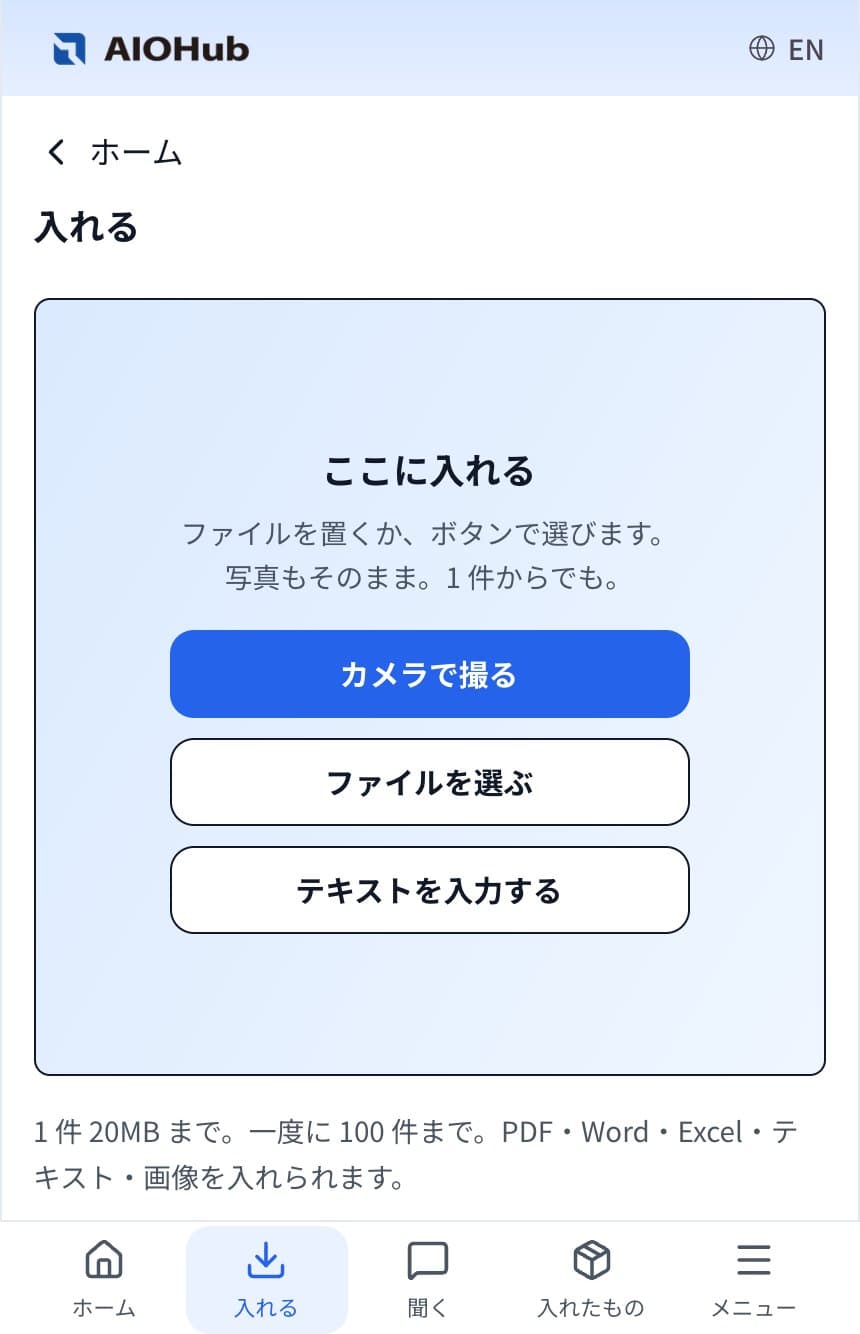
Put in whatever everyday work produces: minutes, daily reports, quotes, manuals, photos, notes. No sorting needed. AI reads them in the background so "Ask" can find them.
Steps
- 1
"Take photos"
the phone camera opens. Each shot lines up below; "Put in" bundles them into one document (up to 20). Good for site boards, drawings, delivery notes.
- 2
"Choose files"
pick files from the device, several at once. On a PC you can also drop files into the dotted box.
- 3
"Enter text"
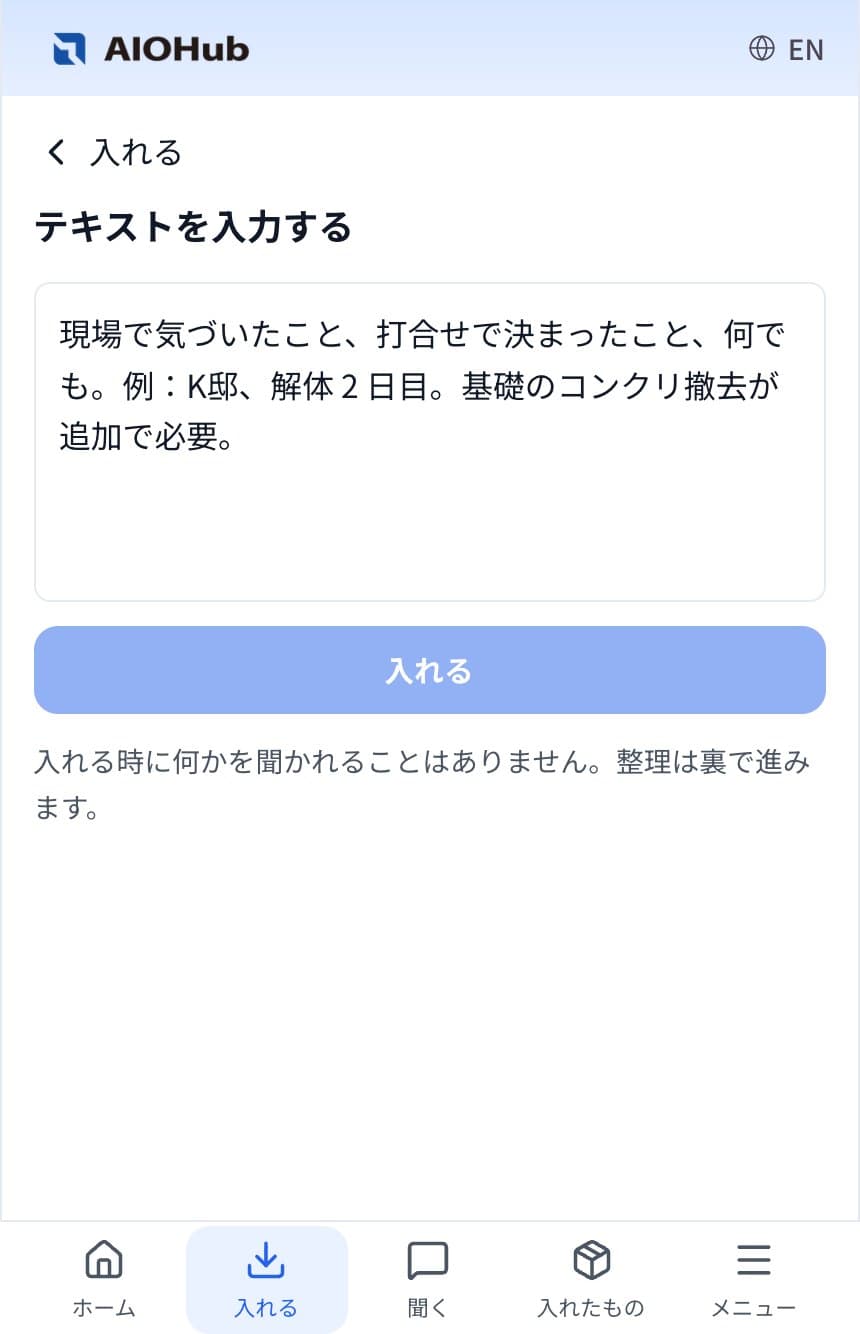
type what you noticed on site or what was decided in a meeting, then "Put in". Example: "K residence, demolition day 2. Extra concrete removal needed at the base."
- 4
"Add with a template"
add with fixed fields. Choose "Situation (what is happening on site, etc.)" to get the fields When, Where, Who, What, What happened, and Attachments (photos, files). Fill in only what you can, then "Add". The date starts as today. When you open the item, it is shown with the field names, together with its attachments.
- 5
Choose "Exchange (emails back and forth, etc.)" to get the fields With, About, Received / Sent, When, Message, and Attachments. You can paste the email or chat text as it is. Open the item and press "Add the next message" to add the next one to the same exchange (you do not write With and About again). When opened, the messages are listed one by one in the order they were added (received ones with a white tag, sent ones with a blue tag). In the list it is one row that shows how many messages it has and whether the last one was received or sent. People who can see the exchange, and the person who added it, can add to it. An exchange has one visibility setting (everyone, limited, admins only): later messages are visible to the same people as the first one, and changing it changes the whole exchange. Moving an exchange to the trash moves its later messages with it.
- 6
Choose "Change log (schedules, etc.)" to get the fields For, Round, When, What changed, Why, and Attachments (new version). Round already has the next number filled in, so you do not need to type it (change it only when it is different; 1 to 999). Open the item and press "Add the next change" to add the next round to the same log (you do not write For again; Round has the number after the largest round). When opened, the rounds are listed in round order with a "Round N" tag. If a round number was typed wrong, use "Change the round" on that round (the person who added it, owners and admins can change it). In the list it shows like "Change log · last: 2026-11-16 Round 3". When you ask what changed, the answer uses what is written in What changed and Why (it does not compare the attached versions). Visibility and the trash work the same as an exchange: one setting for the whole log.
- 7
Choose "Deal (quotes, results, etc.)" to get the fields With, Subject, When, Status, Amount, Details, and Attachments (quotes, etc.). Status is chosen from a list (Quoting, Won, Lost, On hold, In progress, Done); nothing is chosen at first, and you can add an entry without choosing. When none fits, choose "Other (write your own)" and write your own word, up to 20 characters. A status you wrote once appears in the list next time. Open the entry and press "Add an update" to add the next update to the same deal (With and Subject are not written again; the current status is already chosen, so change it only when it changed). Updates are listed by date, each with its status, and the current status is shown at the top. In the list it appears as "Deal ・ last: 2026-11-16 Started". If you chose the wrong status, add one more update with the right one.
- 8
Nothing is asked when you put things in. Keep the screen open while sending; afterwards you can close it (reading continues).
- 9
Limits
PDF, Word, Excel and text up to 50MB per file, photos up to 20MB. 100 files at a time. PDF, Word, Excel, text and images. Password-protected PDFs can't be read; remove the password first. Files over 20MB show their progress (%) while sending and resume if the connection drops. PDFs without a text layer (scans) over 20MB can't be read; split them into parts of 20MB or less.
- 10
Putting in the same file again shows "Already stored" and doesn't duplicate it.
Notes
- ID and card numbers are masked automatically during reading.
- A document that is clearly personal health information (diagnoses, test results) is not stored in company memory; instead the person who put it in is asked what to do (a red dot in "What I put in"). If unanswered for 7 days, it is deleted.
- Admins can change a document's visibility (Everyone / Limited / Admins only) under "Stored documents". Payroll lists and HR documents start as Admins only.
- What you put in is always visible to you, whatever its visibility label. If you add a follow-up to an exchange, you can see the whole exchange. Follow-ups and attachments of an exchange or a situation are visible to the same people as the first message.
- When a document is outside its visibility label but still visible to you, a line such as "You put this in. Visible to: Limited" shows why. Opening an attachment shows a line that takes you to the document it belongs to. "1 attachment(s) you cannot see" means an attachment became Admins only after a check (only the number is shown).
Screens