Contents +
User Guide
Introduction (what AIOHub is)Admin
Admin login and the 6-digit code (Google Authenticator)Advanced homeStored documents and visibilityAccounts (issuing and suspending employees)AIOHub AIPublic content (subjects, chapters, articles, FAQs)Public page (share with one URL)AI desk (inquiries, conversation history, page settings)Activity (public-content gaps, edit history, effects)SettingsTrashWhen something goes wrongPublic content (subjects, chapters, articles, FAQs)
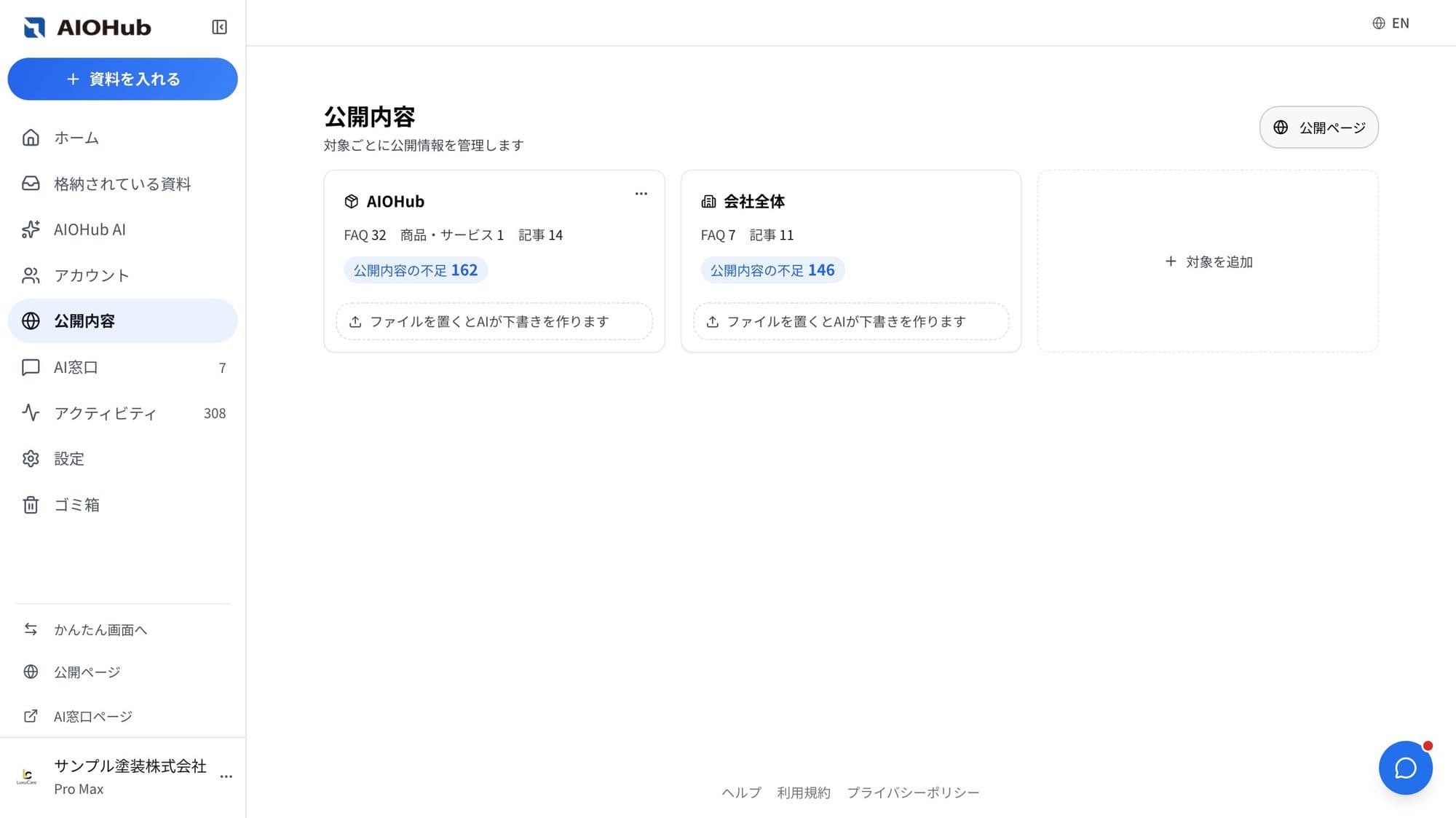
Create what may go outside here as public content, review it, then publish. Public content is organized in three levels: subject → chapter → article/FAQ.
Steps
- 1
Subject
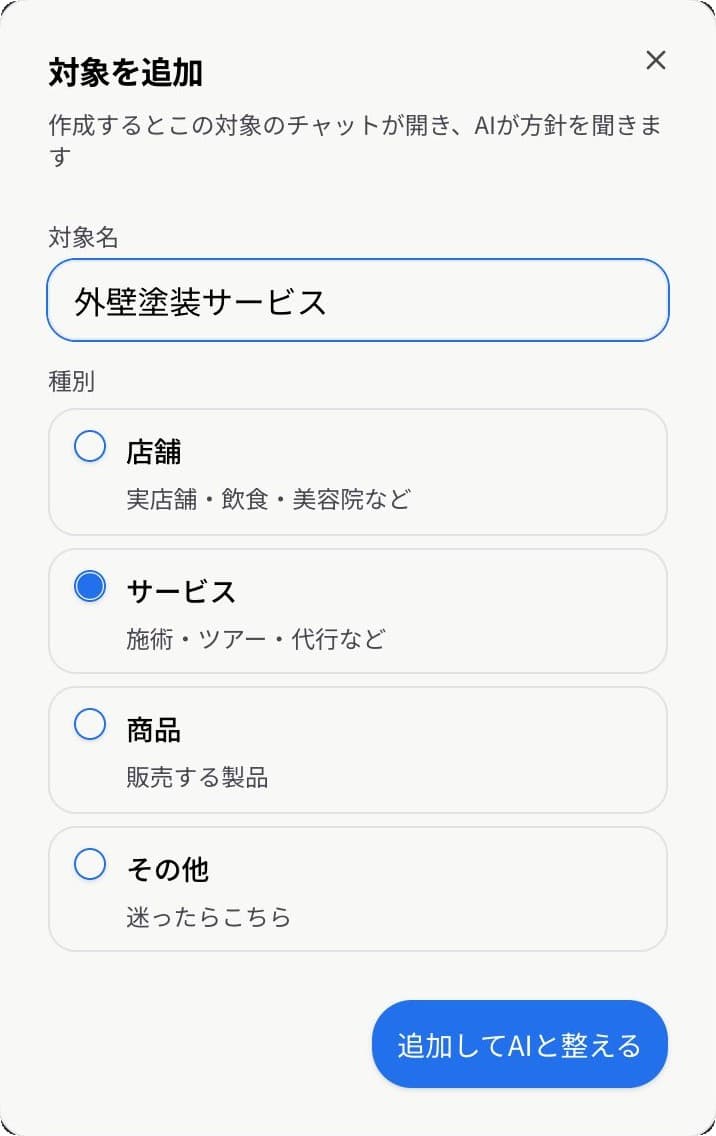
the unit you describe to the outside. "Whole company" exists from the start; add stores, services or products. "Add subject" → name (e.g. Exterior painting service) and type (Store / Service / Product / Other) → "Add and shape with AI". A conversation for that subject opens and AI asks about your policy (what to convey).
- 2
Chapter
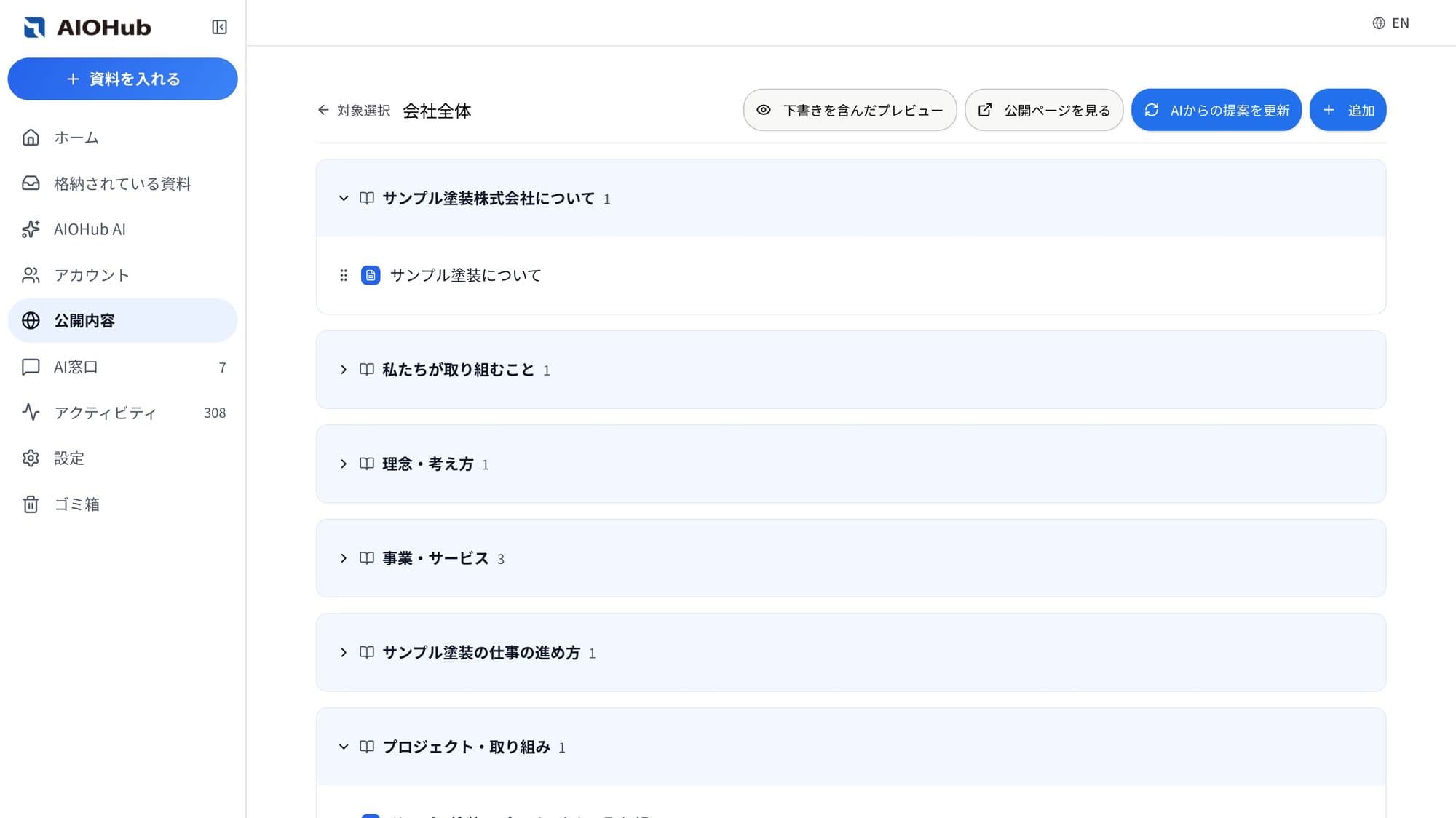
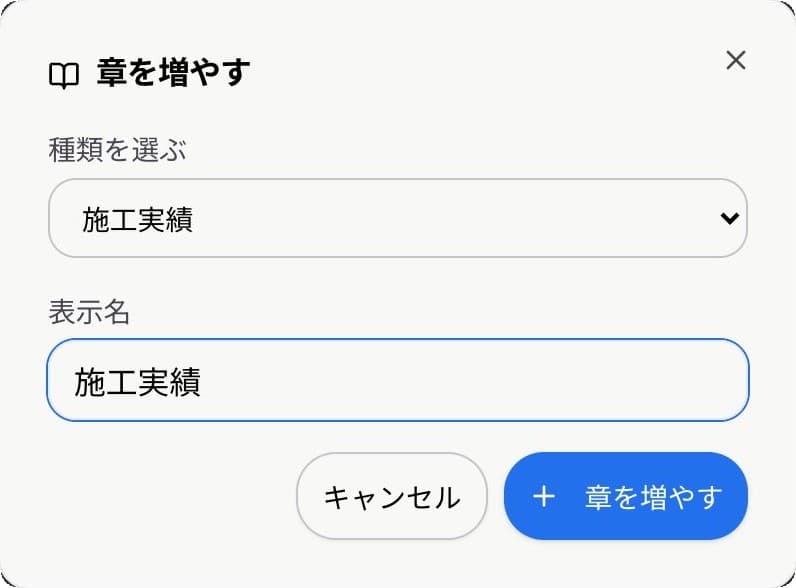
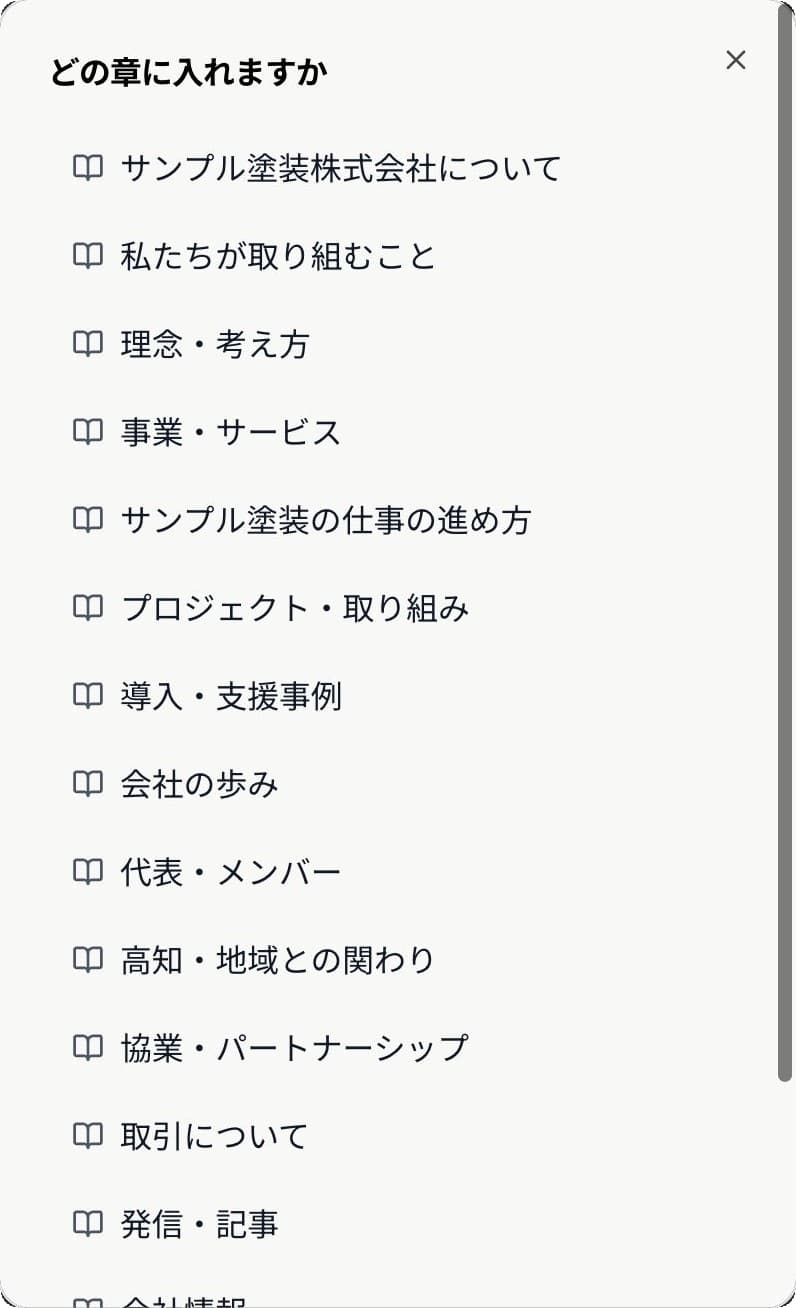
headings within a subject (e.g. Business & services, Pricing, FAQ, Project results, Safety & warranty). Open the subject and use "Add" → "Add chapter": choose from 25 preset chapters or "Other (custom)". Each chapter says "Put in materials or write FAQs/articles and proposals for this chapter will arrive".
- 3
Write an article
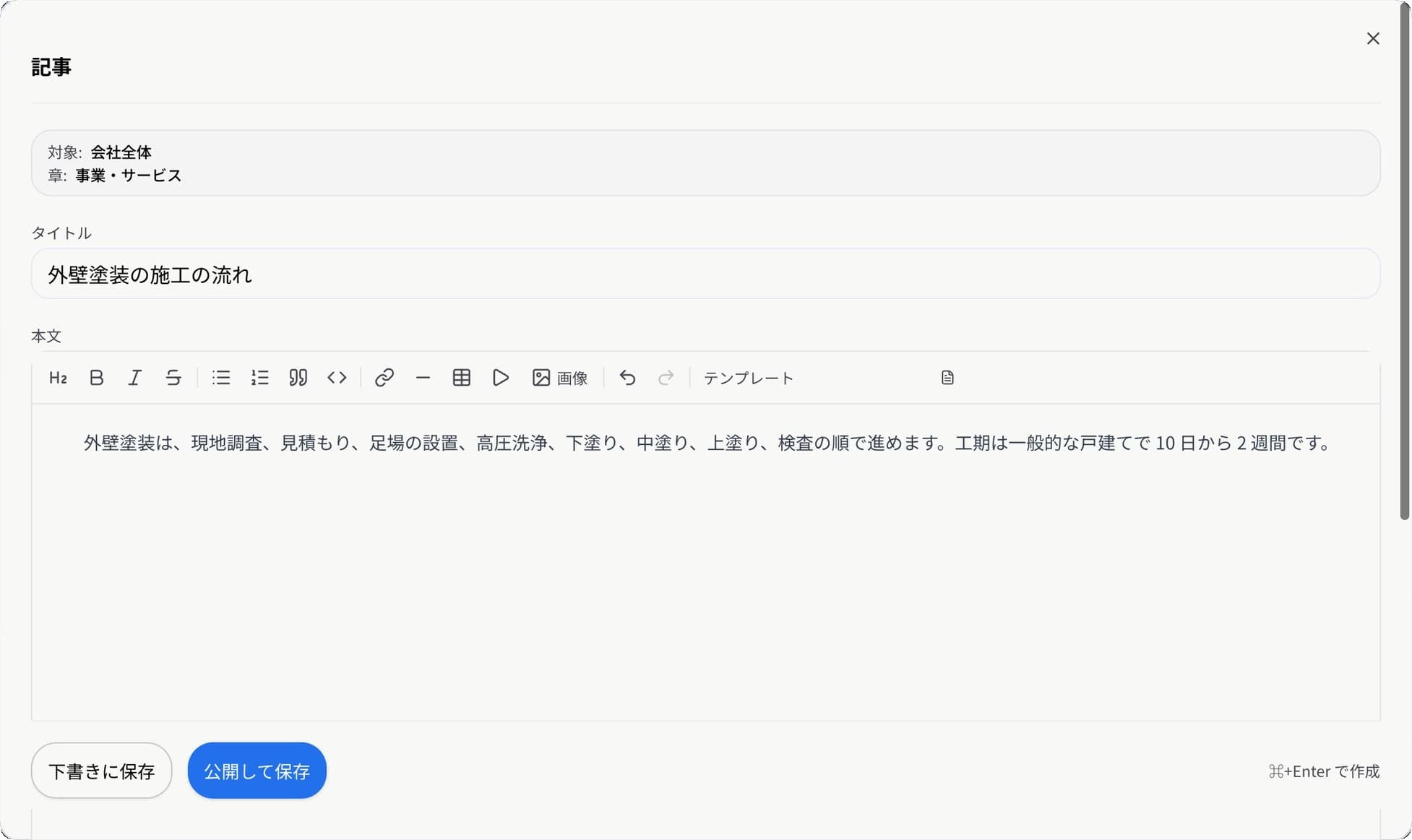
"Add" → "Write article" → pick the chapter → title and body. The body editor has headings, bold, lists, tables, links, images and "Templates" (basic structure, project case, event report). "Save as draft" or "Publish and save". ⌘+Enter also creates.
- 4
Write an FAQ
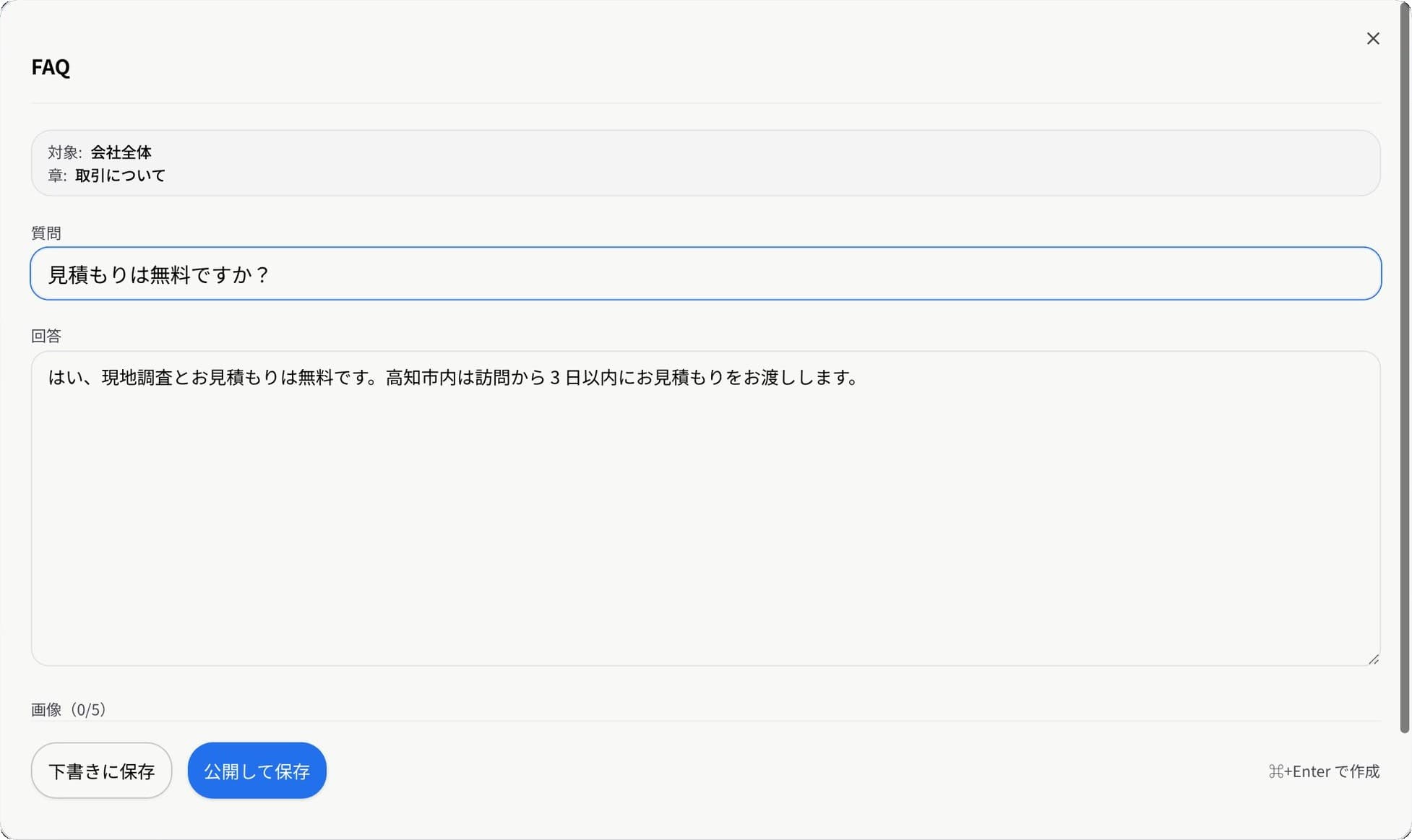
"Add" → "Write FAQ" → pick the chapter → question and answer (up to 5 images). "Save as draft" or "Publish and save". Things visitors often ask the AI desk are best kept as FAQs so it answers accurately.
- 5
Put in materials
"Add" → "Add material" or the drop zone under the subject. Brochures, flyers, price lists: AI reads them and proposes drafts per chapter. This is a separate store from internal "Stored documents", meant for outward material.
- 6
Proposals
"Proposals (N)" in a chapter are AI-drafted candidates. "Actually asked" ones come from visitor questions the AI desk couldn't answer. Open, edit, then "Save as draft" or "Decline". "Refresh AI proposals" regenerates.
- 7
Operations on an opened article/FAQ: "Save", "Publish" / "Back to draft", "View public page", "Check in AI desk" (test how the AI desk answers about it), "Delete" (to Trash). "Advanced settings" sets the URL slug and the type (announcement, event, campaign, seasonal) with a display period.
- 8
Reorder
drag the "⋮⋮" handle at the left on a PC, or use "Move up" / "Move down" in the "…" menu on a phone. "Move" in the "…" menu opens one window: what you are moving and where it is now at the top, the chapter list below (the current chapter is marked "Here now"), and a "Move to …" button to confirm. Use "Change" at the top of the window to move it to another subject. "Undo" in the message right after a move puts it back.
- 9
"Preview with drafts" shows how it will look including drafts. "View public page" is what the outside sees now.
Notes
- Only what a person presses "Publish" (or "Publish and save") on is published. Just before publishing, a confirmation appears if the draft was based on internal documents.
- Give a period to announcement/event/campaign/seasonal items and they hide from the public page automatically once it passes.
Screens